If you want a truly private NSFW AI chatbot, local is best.
Why? Because the more your chats touch the cloud, the more they touch someone else's rules. A local setup keeps the model, the chat logs, and the files on your own machine. Apps like LM Studio and GPT4All are built around that exact pitch: run models locally, privately, and without sending your data off-box. (LM Studio)
And in 2026, local is not some weird nerd hobby anymore. Hardware is finally catching up. Nvidia's RTX 50 series pushed more AI power into consumer GPUs, with cards like the RTX 5090 shipping with 32GB of GDDR7 VRAM. On the Mac side, Apple keeps leaning hard into unified memory, which lets the CPU and GPU share one big pool of memory for larger on-device AI workloads. (NVIDIA)
This guide walks you through the full local path. We'll start with easy, one-click tools. Then we'll move into proper self-hosting, chat interfaces, memory, and even lightweight training.
Why Local AI is the Best Choice for Private, Uncensored Chatbots
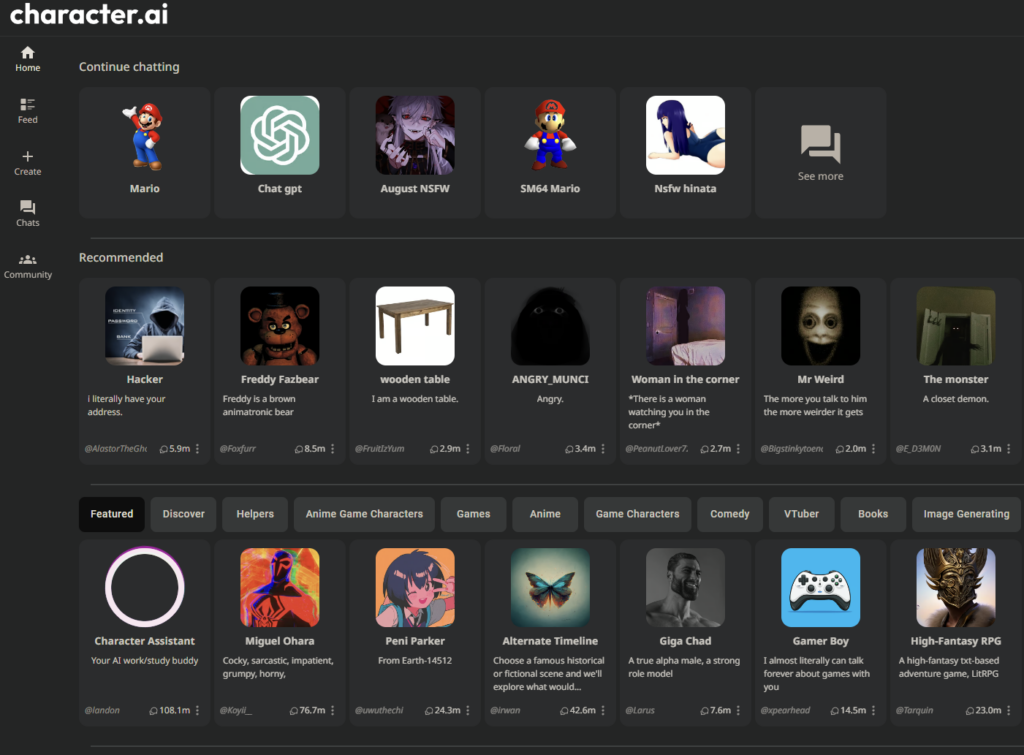
Cloud-based NSFW AI platforms will always have a ceiling. They are liable for what gets generated on their servers, which means they control what you can do, who can see it, and when they can pull the plug. Local AI has none of those constraints. Your data never leaves your machine. There is no account to ban, no policy update to worry about, and no server going down at the worst possible moment.
That is the core reason serious users go local — not just for the content, but for the control.
Best One-Click Local AI Installers for Beginners (LM Studio & GPT4All)
A few years ago, building a local chatbot felt like building a race car from scrap metal.
Now? You can just download an app.
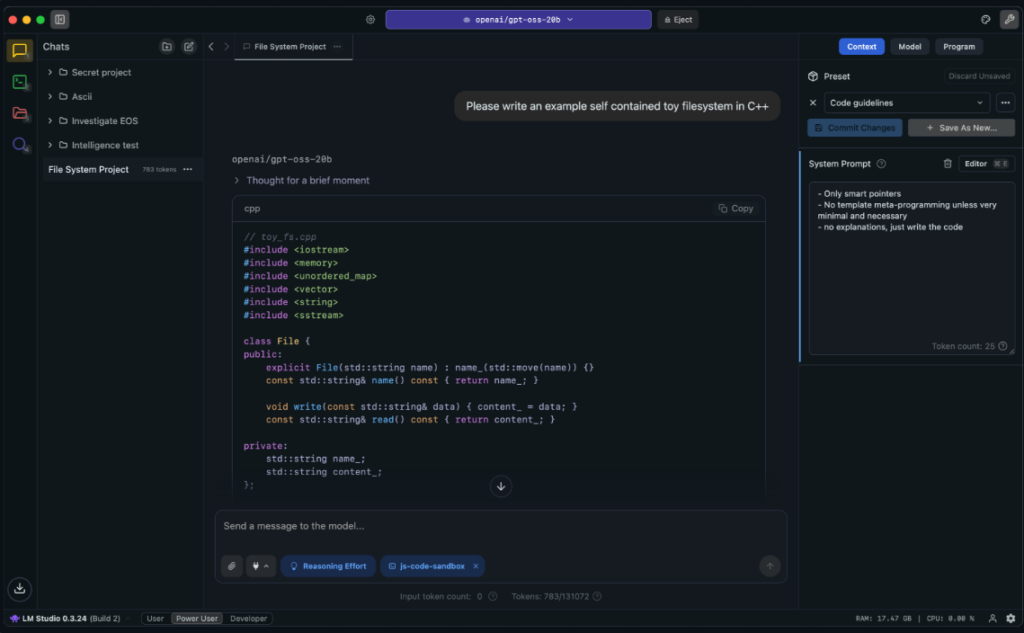
LM Studio lets you run local models on your computer and even browse models from inside the app. GPT4All does the same basic thing with a private desktop chatbot setup and local docs support. Both are made for people who do not want to wrestle with a terminal on day one. So if your question is, how do I make a local NSFW chatbot with zero coding? the easy answer is:
- Download LM Studio or GPT4All.
- Search for a model.
- Load it.
- Start chatting.
How to Find High-Quality Uncensored Models (Abliterated & GGUF)
Local tools like LM Studio let you pick from any model the community has uploaded — including uncensored and fine-tuned ones. Cloud platforms like SpicyChat or Janitor AI do allow NSFW, but they control which models you can use because they are responsible for what gets generated on their servers. If you want full freedom to run whatever model you want, local is the only option that truly delivers.
Inside tools like LM Studio, you can search model catalogs and pull open-weight models straight to your machine. Many users look for terms like uncensored, unfiltered, or abliterated when browsing community uploads. Abliterated models are versions of standard open-weight models that have had their safety alignment layers removed, allowing for more natural and uncensored responses — they are one of the most searched-for model types in the local AI community. That said, do not get hypnotized by edgy model names. A model called unfiltered is not always good. Sometimes it is just sloppy.
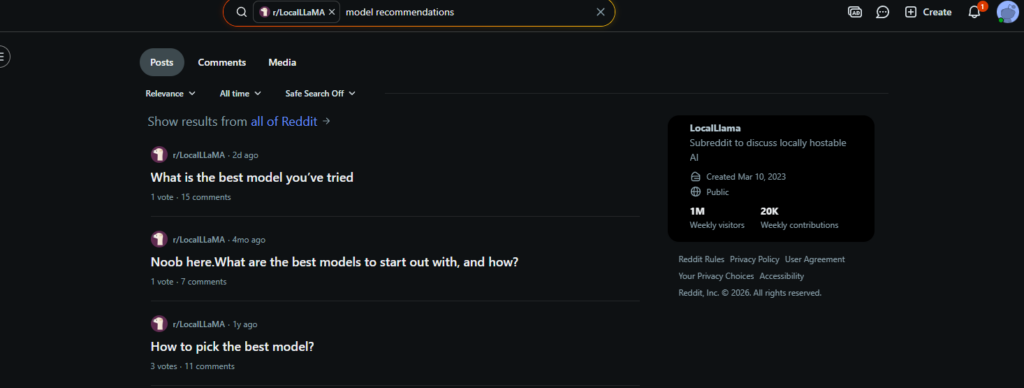
For beginners, the smarter move is to pick a smaller chat model with decent community buzz — r/LocalLLaMA is a good place to see what people are actually running and recommending — then test it yourself. If it writes well, stays in character, and does not collapse into nonsense after 20 messages, you are on the right track.
How Model Size Affects NSFW AI Quality (8B vs 34B vs 70B)
The assumption is that 8-bit always beats 4-bit because it is more precise. For roleplay, it is not that simple. The 4-bit version of the same model often feels looser and more generative, while 8-bit can drift toward stiffer, more assistant-brained outputs that kill immersion. For creative and NSFW use, Q4_K_M is usually the better call — and it runs faster and uses less VRAM.
An 8B model is fast but flat. It loses the thread, repeats itself, and defaults to generic answers when scenes get complex. A 34B is a noticeable step up — better prose, more consistent characters, longer coherent sessions. At 70B, the quality jump widens again: better pacing, better nuance, more room to stay in the scene. If the VRAM is there, it shows.
Automated Installers with Pinokio
If you want more control without doing manual setup, Pinokio is the middle path.
Pinokio is basically a launcher for scripted AI installs. You use a browser-like interface, click an app, and let it run the install steps for you. It supports packaged app flows and scripted actions. In other words, it automates the setup, so beginners can install more advanced AI tools without typing terminal commands by hand. (pinokio.co)
So instead of you doing: download this, then install this, then run this command, then copy this file, then start this server — Pinokio does it for you more like: press this button, and I'll do the whole recipe.
What Is GGUF? A Beginner's Guide to Local AI Model Formats
GGUF is the format that the AI model is stored in. This matters more than people think.
Why GGUF? Because it is simple, common, and usually ready to run fast on local tools. Do not start your journey by making life harder than it needs to be.
Think of it like this:
- The model = the brain
- GGUF = the jar the brain is stored in
- LM Studio / KoboldCpp = the machine that opens the jar and uses the brain
If you are a beginner, stick to GGUF files first. KoboldCpp (more on Kobold later) is built around GGUF/GGML-style local inference, and GGUF is widely supported in the local ecosystem. In plain English: it is the least painful starting format for normal people. (GitHub)
Building a Local AI Powerhouse: Hardware & GPU Requirements
Once you want more control, you move past click and chat and start building a stack. That stack has three parts: hardware, backend engine, and frontend chat interface. Get these three right and you are in business.
GPU vs. CPU: Which Do You Need for Local AI?
Yes, you can run models on a CPU. No, you probably do not want to.
For local chat, Nvidia is still the best GPU brand because it has good CUDA support. Apple has become a real option too thanks to unified memory, and the broader PC market is also pushing more AI acceleration into modern chips. But if you want the least drama, Nvidia is still king.
First time running LM Studio, I was getting 3 tokens per second and assumed local AI was just slow. Turned out the model was running entirely on CPU because GPU layers were set to zero in settings. One slider. Bumped it up, reloaded the model, and it jumped to 80 tokens per second. If your generation feels unusually sluggish, check that setting before blaming your hardware.
VRAM Guide: How Much Memory Do You Really Need?
Here is the simple version. These are rough rules of thumb, not holy law:
8GB — Good for 7B to 8B models. Fast enough. Cheap enough. Fine for basic chat and testing. But depth, memory, and writing quality can feel thin. In practice, a Llama 3.1 8B Instruct (Q4_K_M) on something like an RTX 3080 10GB will run at roughly 80 tokens per second. That feels instant. You type, it answers. The problem is the ceiling. Push past what the VRAM can cleanly hold — say, trying to force a 70B model onto the same card via CPU offloading — and you drop to around 2–3 tokens per second. That is not a typo. You can watch each word crawl in. At that point it is not a chatbot, it is a loading screen.
One thing that catches people early: the model loads fine, the first few messages feel great, then around message 15 it slows to a crawl or crashes. This is usually context filling up VRAM, not a broken install. Lower the context window in settings or drop to a smaller quantization. The fix takes 30 seconds once you know what you are looking for.
16GB to 24GB — This is the sweet spot for most serious local users. You get room for much stronger models, better context, and less compromise. If you want a setup that feels actually fun instead of merely functional, start here. At 24GB, an 8B model runs so fast it stops being a thing you think about — well over 100 tokens per second on cards like the 4090. More importantly, you unlock the 34B range, where writing quality and roleplay depth start to feel meaningfully different. Generation stays smooth and context holds up better over long sessions.
48GB+ — This is enthusiast land. Big models. Bigger context. Better prose. Better roleplay. More room to stop fighting your machine and start enjoying it. At this tier you can run a 70B model in Q4_K_M fully loaded in VRAM with no CPU offloading dragging it down. Cards with true 48GB like the RTX A6000 have been benchmarked at over 100 tokens per second on 70B Q4_K_M. That is the difference between a tool and a companion.
The real lesson is simple: buy as much VRAM as you can afford without wrecking your life.
Setting Up the Stack: Ollama vs. KoboldCpp for Roleplay
The backend is what allows you to communicate with the model. The two most popular backends are Ollama and KoboldCpp.
Ollama
Ollama is the fastest clean start for many people. It is built around running open models locally. It exposes an API and is designed to make local serving dead simple. It also has broad integration support, which is why it shows up in so many local AI guides now. (Ollama)
If your goal is to get a model running in the background and connect stuff to it, Ollama is a strong first pick.
KoboldCpp
KoboldCpp is the cult favorite for a reason.
It is built on llama.cpp, supports GGUF/GGML-style local inference, exposes a Kobold API, and includes features that local roleplay users care about: memory tools, world info, character support, scenarios, and persistent stories. Its docs also highlight Smart Context, which helps reduce waste by reusing context more efficiently. (GitHub)
Kobold is generally considered the go-to for roleplay-specific chatbots.
SillyTavern: The Best Frontend for Local NSFW AI
The frontend is what you actually see. It's the interface you type into. SillyTavern is the leader in the space by a wide margin.
Its docs make clear why: World Info, lorebooks, attachments, user settings, and lots of prompt-control features built for long-form chat and character play. World Info can inject details into prompts when trigger words appear, which makes it perfect for character history, setting notes, inside jokes, and recurring facts. (SillyTavern Documentation)
Fair warning: getting SillyTavern to actually talk to your backend is where most people get stuck the first time. The interface loads, you type a message, nothing comes back. Usually the fix is just the URL. For Ollama, the default is http://localhost:11434. For KoboldCpp, it is http://localhost:5001. One wrong port and it fails silently with no useful error message. Once the connection clicks, everything downstream works fine.
Security & Privacy: How to Access Your Chatbot Safely via Telegram
You built the AI on your PC. Great. But what if you want to talk to it from your phone while you are in bed, on the couch, or pretending to be productive somewhere else?
You need a bridge.
The Bridge Layer
Some users build this with custom middleware. Others use local gateways, SillyTavern extensions, or tools built around Ollama-based agents. The basic idea is always the same: your PC runs the model, a small bridge passes messages from your phone app to your local AI, and your AI answers back. That is it.
Telegram Setup
Telegram is a popular choice because bots are first-class citizens there. Telegram's Bot API is the official way to build them, and Telegram's own setup docs point people to @BotFather for creating and configuring new bots. (Telegram)
The safe setup looks like this:
- Create a private Telegram bot with @BotFather.
- Keep the token secret.
- Whitelist your own Telegram user ID so only you can talk to it.
- Route messages from that bot to your local model.
That whitelist step matters. Skip it, and your private bot can turn into a dumb little public doorway.
If you want more detail, Telegram's official From BotFather to Hello World guide is the best place to start.
Discord Setup
Discord can work too, especially if you want a private server for chat across desktop and mobile. The basic idea is simple:
- Create a bot in the Discord Developer Portal.
- Add it to a private server you control.
- Keep the token secret.
- Route messages from Discord to your local AI running on your PC.
The trick is the same: keep it self-hosted, keep it private, and do not expose your machine directly to the internet unless you know exactly what you are doing. To go deeper, read Discord's official Building your first Discord Bot guide.
Security Warning: Do Not Just Open Ports
This is where people get reckless.
If you want access from outside your house, use a secure tunnel or private network layer instead of opening random ports on your router. Tailscale's docs explicitly highlight remote access without port forwarding or public IP exposure, which is exactly why so many people use it for home lab and self-hosted setups. (Tailscale)
That is the sane move. Opening ports for a private NSFW chatbot is not bold. It is just how you end up learning security lessons the annoying way.
Advanced NSFW AI: Fine-Tuning, Lorebooks, and Long-Term Memory
This is the part people get wrong. Most users do not need full fine-tuning first. They think they do. They usually do not.
Lorebooks vs. Fine-Tuning: Which Do You Actually Need?
Lorebooks: The Easy Win
In SillyTavern, World Info — also called lorebooks — lets you inject facts when certain trigger words show up. That means the AI can remember your OC's backstory, your made-up city, your weird pet names, or your ongoing plot the moment those words appear. (SillyTavern Documentation)
This is the fastest, easiest way to make the bot feel trained on your world without actually retraining the model. And honestly? For a lot of people, this is enough.
Preparing a Dataset for Fine-Tuning
If you really do want to train on your own style, start by cleaning your data. Old chats are messy. They have broken turns, repeated filler, typo storms, and random junk. Before a model can learn from that, you need to turn it into something structured — usually JSONL-style conversation data.
The core job is simple: separate speaker turns clearly, keep formatting consistent, remove garbage, and keep only examples you would want the model to imitate. Good training data matters more than a giant pile of bad logs.
Lightweight Fine-Tuning with Unsloth (LoRA / QLoRA)
If you want a beginner-friendly way to do fine-tuning, Unsloth is one of the names worth knowing. Its docs are built around helping users fine-tune models with LoRA and QLoRA-style methods, and it explicitly pitches itself as beginner friendly while reducing VRAM needs compared with heavier training paths. (Unsloth)
The important idea here is LoRA. LoRA does not retrain the whole model from scratch. It adds a smaller learned layer on top, which makes it far more realistic for home users. That means you can teach the model your voice, your format, your pacing, and your favorite style without needing a datacenter and a trust fund.
Character Cards: The Fastest Way to Build a Custom NSFW AI Persona
There is one more shortcut people love: character cards.
Instead of full training, you can load a character card that includes a persona, backstory, tone, scenario, and even sample dialogue. In practice, this is often the fastest way to spin up a very specific companion or roleplay persona without doing any real training at all.
A character card is basically a prebuilt personality file. You import it into a frontend like SillyTavern, and SillyTavern uses the card's text to tell the AI who it is, how it talks, how it sees you, and what kind of situation the chat starts in. SillyTavern's character system is built around fields like Character Description, Personality, Scenario, First Message, and Example Dialogue, all of which shape how the bot behaves.
Most people use character cards in one of two ways. They either download a ready-made card and start chatting right away, or they edit the card to better fit their taste by changing the greeting, the relationship setup, the personality, or the example dialogue.
Where to Get Character Cards
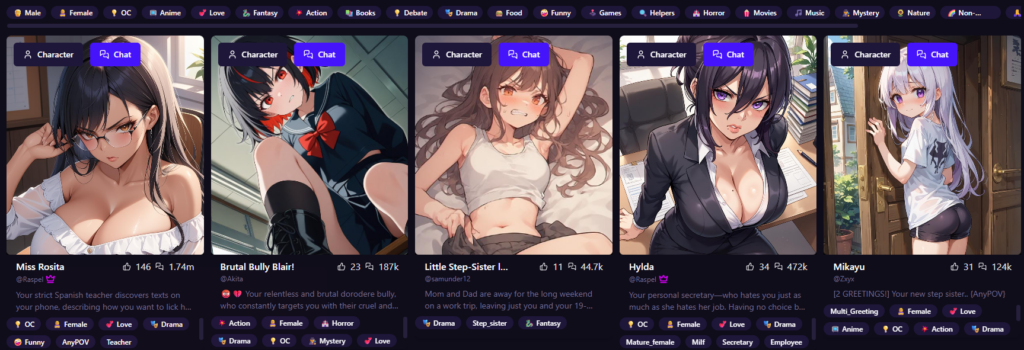
If you do not want to build a character from scratch, you can download ready-made cards from community libraries. Popular places include Chub, CharHub, and AI Character Cards, all of which let users browse and share character files. CharHub, for example, has dedicated character browsing with tags and categories, and AI Character Cards is built specifically around cards for tools like SillyTavern.
Once you find a card you like, you usually just import it into SillyTavern and start chatting. For the exact install steps, see SillyTavern's official character documentation.
How to Create a Local NSFW AI Companion with Long-Term Memory
This is where local companions stop being toys. Memory is the difference between a cute chatbot and an ongoing relationship simulator.
The Context Window Problem
Even in 2026, bigger context does not solve everything. Yes, modern local models can support much larger context windows than older models. Some local catalogs now advertise six-figure context sizes on certain models. But a bigger window does not mean perfect memory forever. It just means the model can look at more recent text at once. Eventually old details still get pushed out, blurred, or ignored.
So if you want lasting memory, you need more than context alone.
Long-Term Memory with Vector Search (Chroma)
This is where tools like Chroma come in. Chroma is an open-source search layer built around vector and text retrieval. In plain English, it lets your app store memories, search old chat fragments, and pull back the bits that matter when needed. (Chroma)
So instead of stuffing your whole chat history into every prompt, your system can do something smarter:
- Save useful memories.
- Search them later.
- Inject the best matches back into the prompt.
That is how your AI remembers what you like weeks later without carrying the whole past on its back every second.
Smart Summarization
Another strong trick is auto-summary memory. Instead of saving every line forever, some chat setups summarize the last chunk of conversation into a short memory note. For example, a tool might compress the last 50 messages into a clean snippet like: user likes slow-burn romance, hates repetitive pet names, prefers jealous but soft characters, current relationship status: exclusive. That summary then stays in the prompt as a lightweight memory anchor. Cheap. Smart. Effective.
Persona Persistence with Global Notes in SillyTavern
SillyTavern's broader memory and attachment tools are useful here too. Its system supports global and character-level data sources, which makes it a natural place to store standing facts about your preferences and ongoing scenario state. (SillyTavern Documentation)
Set up a permanent note for things like your likes and dislikes, preferred tone, relationship status, hard nos, and recurring story facts. That way your companion does not wake up every week with amnesia.
Conclusion: Troubleshooting and Next Steps
Local NSFW AI in 2026 is finally good enough to be worth the trouble. Not perfect. Still messy in places. But absolutely worth it if privacy, control, and freedom matter to you.
How to Fix a Repetitive AI
If the bot keeps repeating itself, gets stuck in loops, or sounds like it is chewing on the same sentence forever, start with sampling settings. Increase the Repetition Penalty to around 1.1 or 1.2, and raise Temperature slightly (try 0.8 to 1.1) to give the AI more creative freedom. Adjust top-p if it feels either too random or too predictable. Tiny changes can make a dead bot feel alive again.
Privacy Checklist
If you care about privacy, act like it. Check your apps for telemetry and analytics settings. Local-first tools are built around keeping work on your own machine, but you should still review settings, update policies, and turn off anything you do not want running in the background. LM Studio, GPT4All, and Ollama all market local/private use, but it is still smart to read the settings instead of trusting vibes.
The Future of Local AI
The gap between local models and top cloud chat quality keeps shrinking. The local ecosystem is moving fast, tooling is easier, and the hardware is better than it was even a year ago. Ollama, LM Studio, Unsloth, Chroma, and SillyTavern all show the same trend: local AI is getting smoother, stronger, and more normal by the month. If you want a private NSFW AI chatbot that feels like yours, local is no longer the hardcore option. It is the obvious one.
Frequently Asked Questions
Yes. When you run models locally, you are not bound by the Terms of Service of cloud providers like OpenAI or Anthropic. However, you must always ensure you are complying with local laws regarding the content generated on your machine.
Absolutely. Apple’s M-series chips (M1, M2, M3) use Unified Memory, which allows the GPU to access the entire system RAM. This makes Macs some of the best machines for running large 70B+ models that would otherwise require multiple expensive GPUs on a PC.
As of 2026, many users prefer abliterated versions of Llama 3 or Mistral. These models have had their safety alignment layers removed, allowing for more natural and uncensored responses. Check r/LocalLLaMA for current community recommendations as the landscape shifts quickly.
No. Once you have downloaded the model and the interface (like LM Studio or SillyTavern), you can run your chatbot entirely offline, ensuring 100% privacy.
The best fix is to adjust your sampling settings. Increase the Repetition Penalty to about 1.1 or 1.2, and slightly increase the Temperature (try 0.8 to 1.1) to give the AI more creative freedom. These settings are accessible in LM Studio, KoboldCpp, and SillyTavern.
An abliterated model is a standard open-weight AI model that has had its safety alignment layers removed or bypassed. The result is a model that responds more freely to NSFW and uncensored prompts without the refusals typical of commercially aligned models. Abliterated versions of popular models like Llama 3 and Mistral are widely available on community platforms.
LM Studio is the most beginner-friendly option. It is free, has a built-in model browser, runs locally on Windows and Mac, and requires no coding. Pair it with an abliterated GGUF model from the community and you have a fully private, uncensored chatbot running in under 30 minutes.